Basic Site Setup
Import Demo
If your server does not meet the required speed or configuration settings listed below, we recommend importing specific demo pages, posts, or other content individually instead of using the full demo import option.
Minimum Server Requirements for Demo Import:
Memory Limit	        :256 MB
Max Execution Time	:300
Required Plugins	:Elementor, RTMKit, RTMKit PRO, RTMForm
Import All Demo Data In One Click
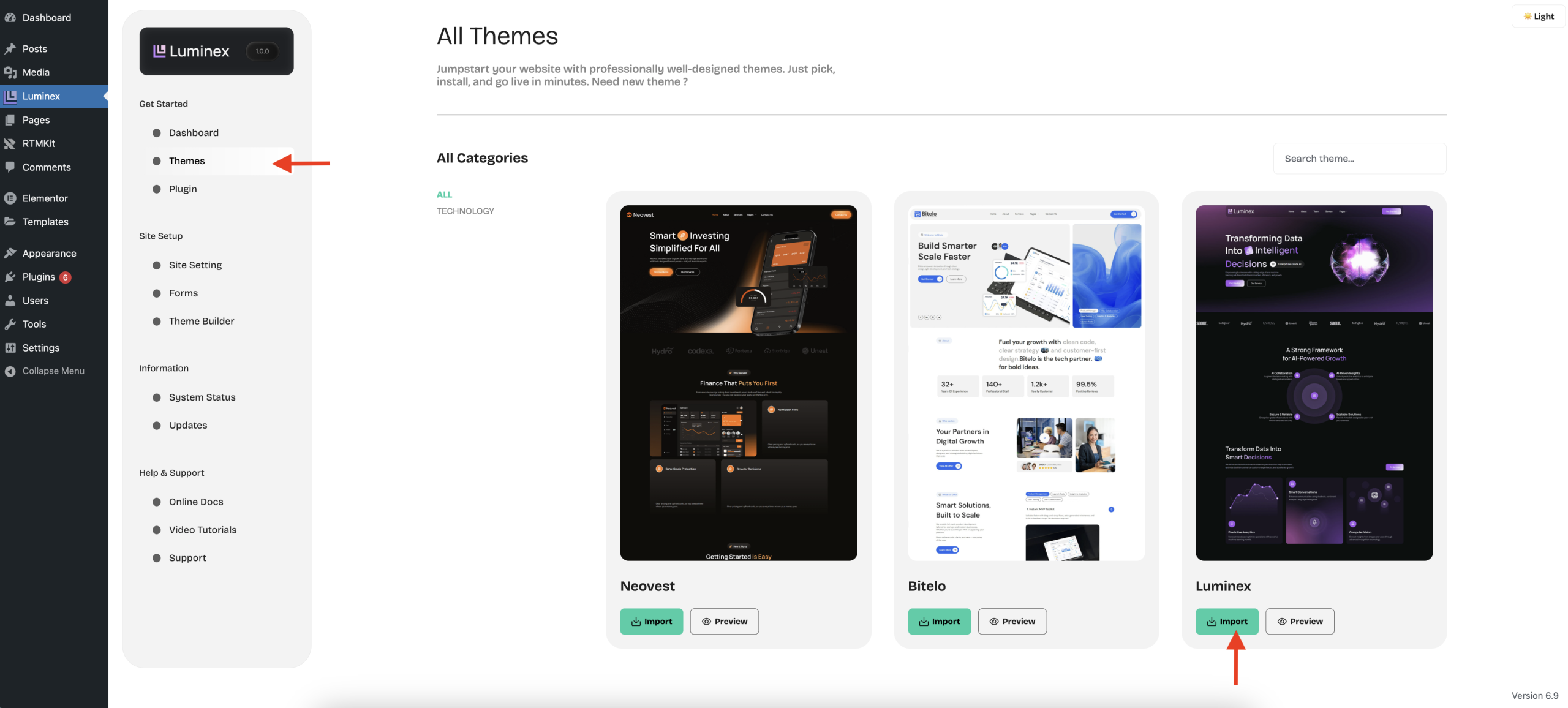
1. Navigate to the Themes
After activating the theme and installing required plugins, Follow these steps to import demo data:
- Click Themes Menu
- Click Preview on the theme you want to display the preview page before installation.
- Click Import on the desired theme.
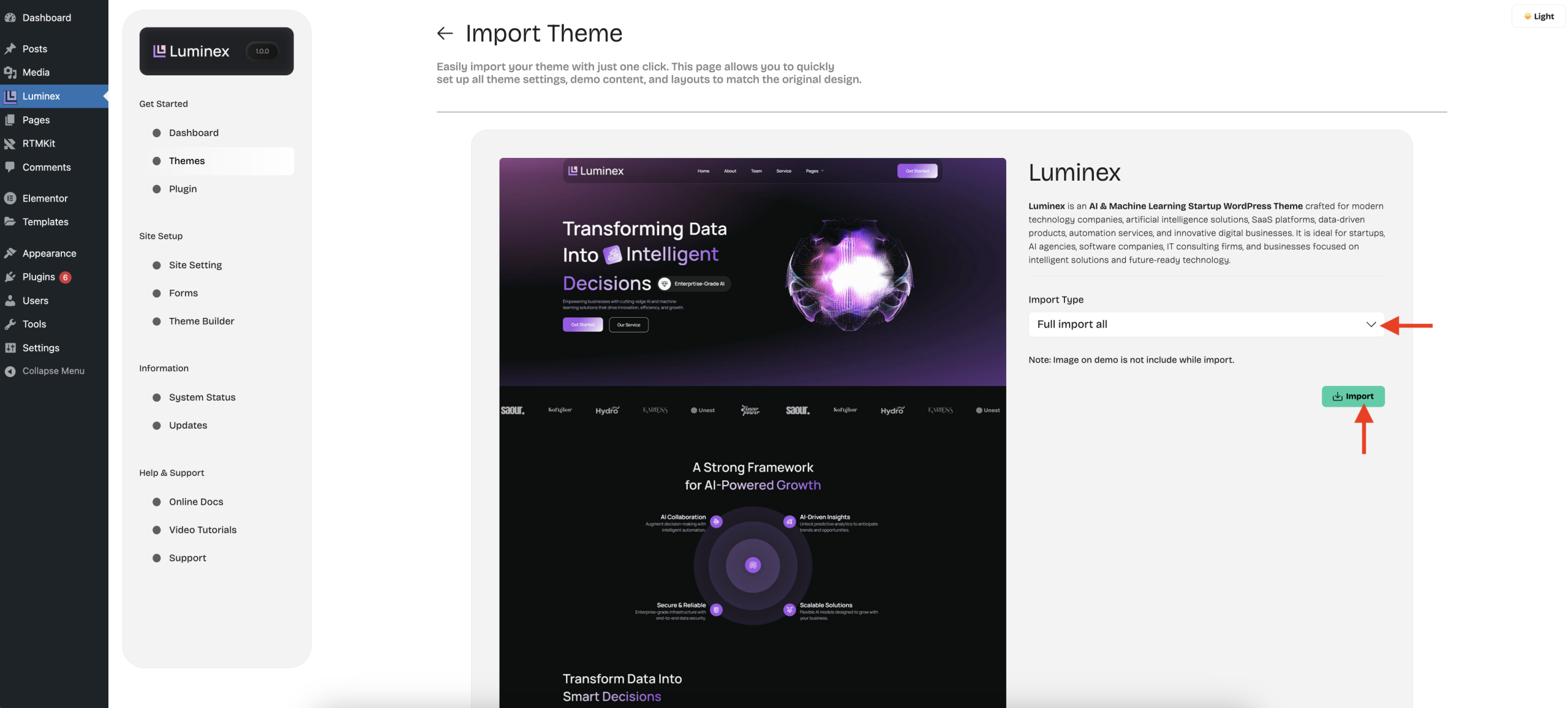
2. Choose the Import Type:
- Select “Full Import All” to import all demo pages along with the global styles.
- Select “Demo Content Only” to import all demo pages without the global styles.
- Select “Global Style Only” if you only want to import the global styles.
- Then, click Import to begin the process.
Please note: Images in the demo are not included during import due to licensing restrictions.
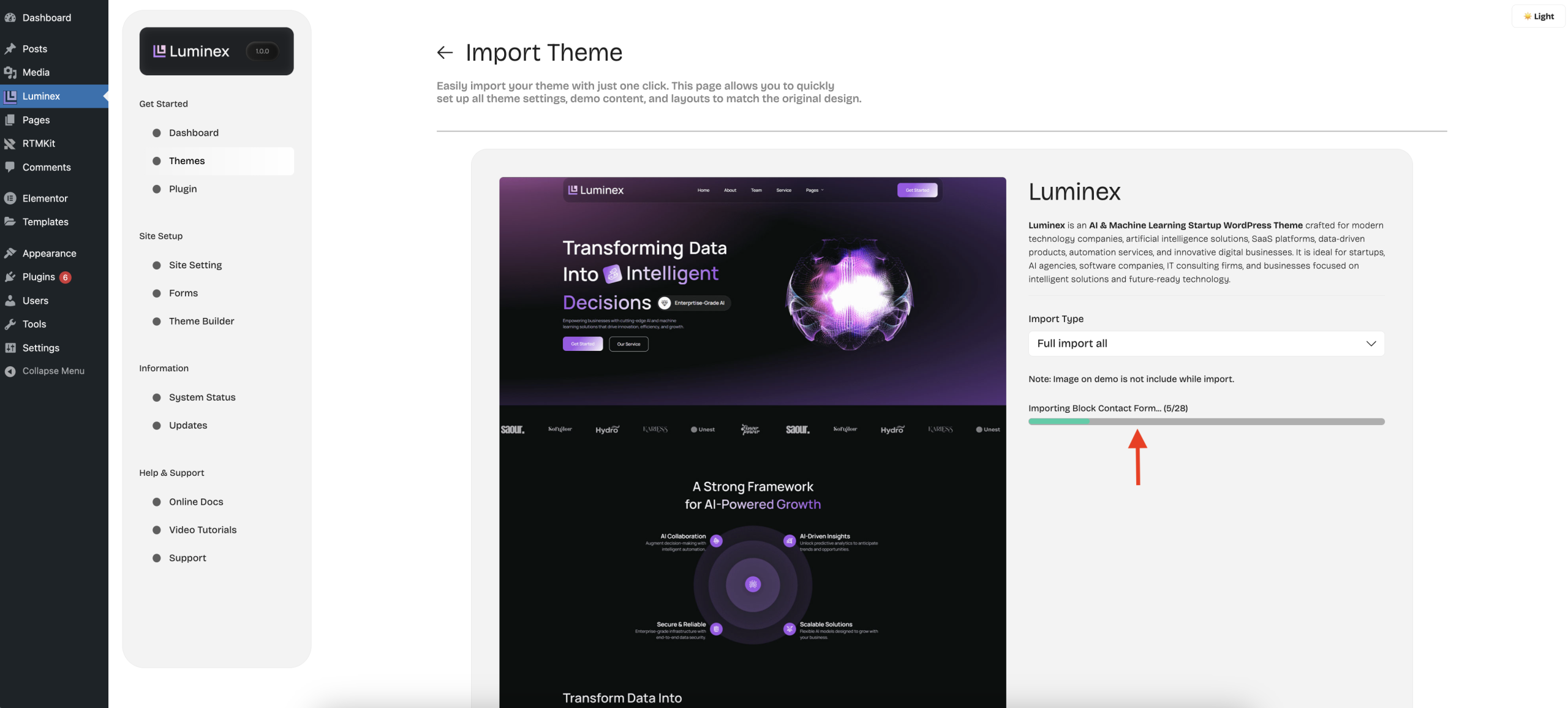
3. Wait until the import process is complete
- Please wait until the import process is complete.
- Don’t refresh or close the page until the process is completed.
- This may take a few minutes, depending on your internet speed and hosting performance.
Note:
Once the import begins, do not refresh the page or close the browser tab while the process is running. Interrupting the import may cause errors or stop the process entirely.
- A success pop-up for the Import process will appear as shown below.
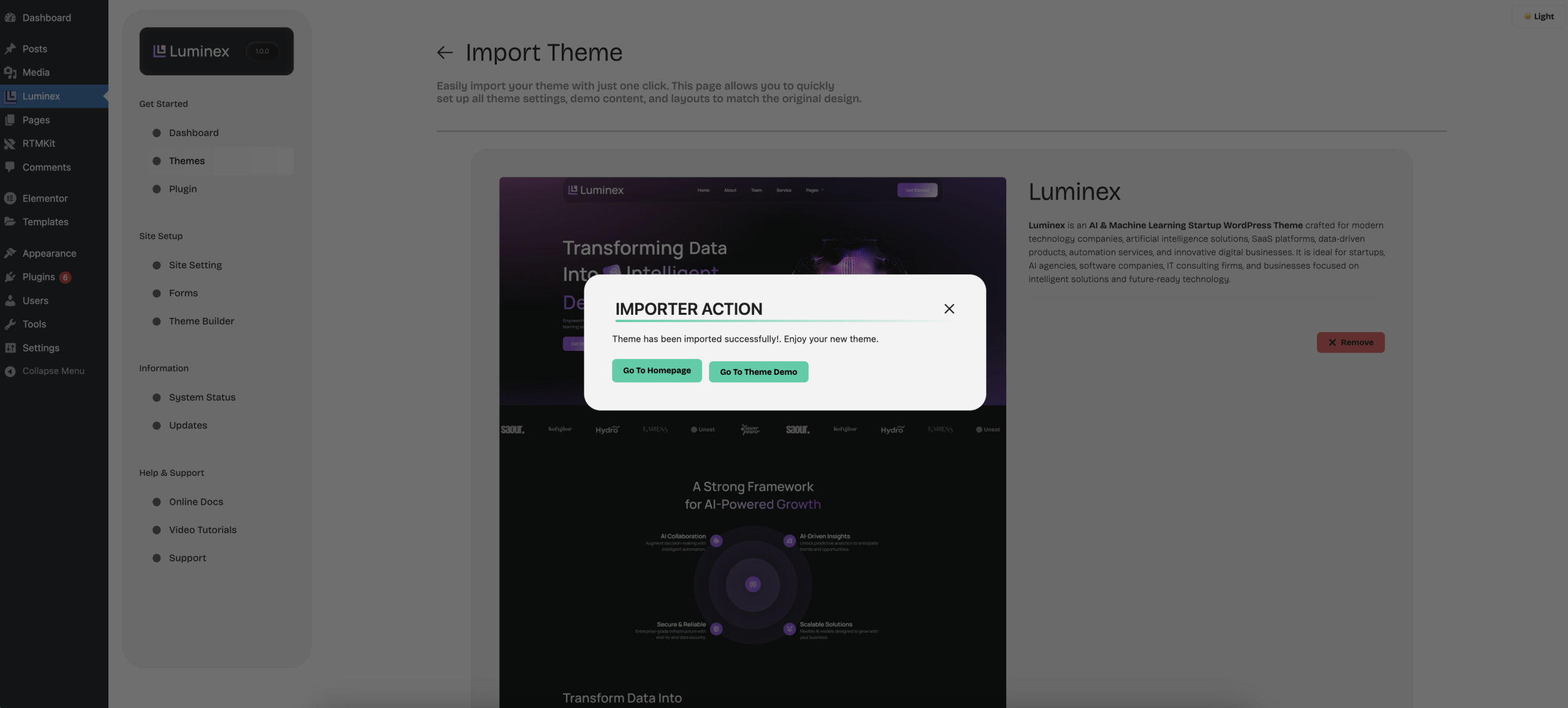
- Click Go to Homepage, to display the homepage preview of the imported theme.
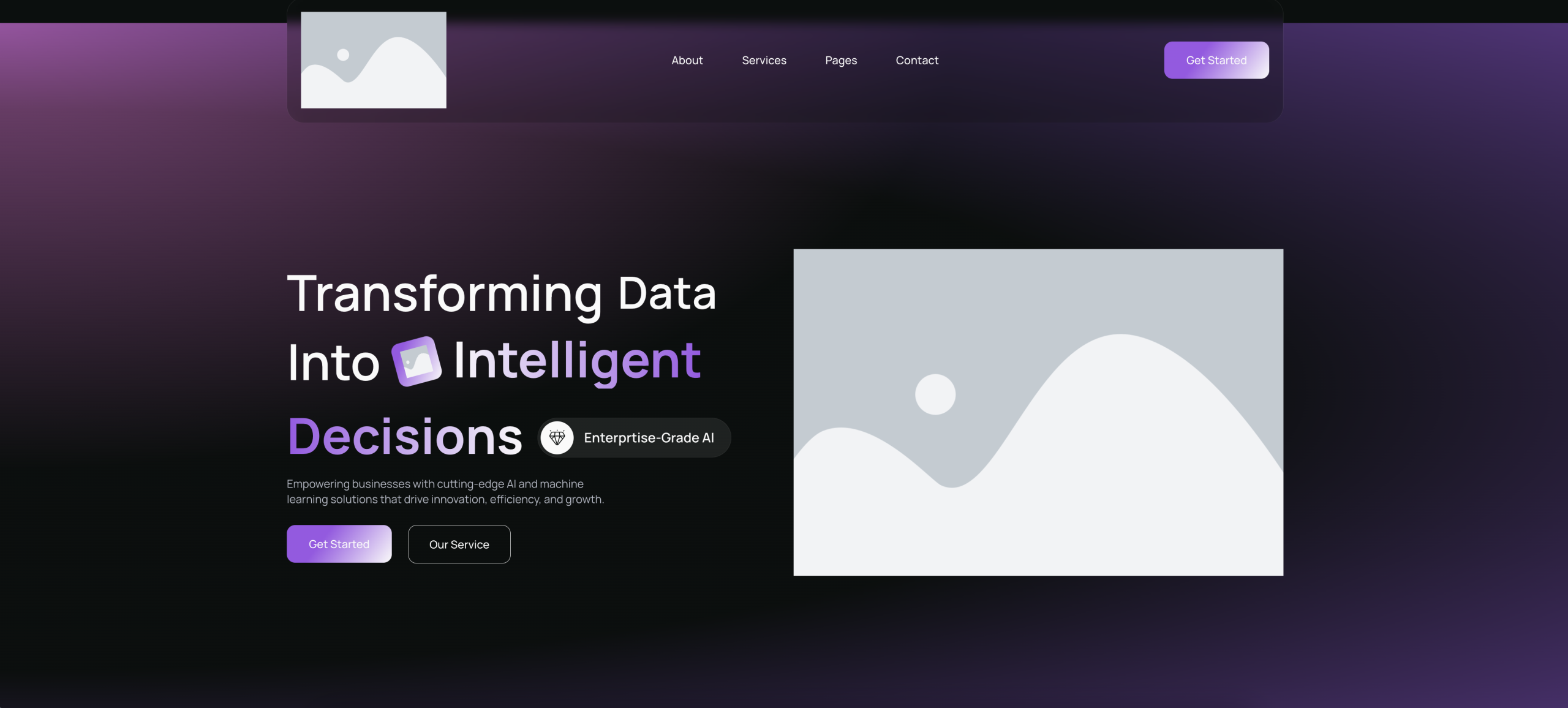
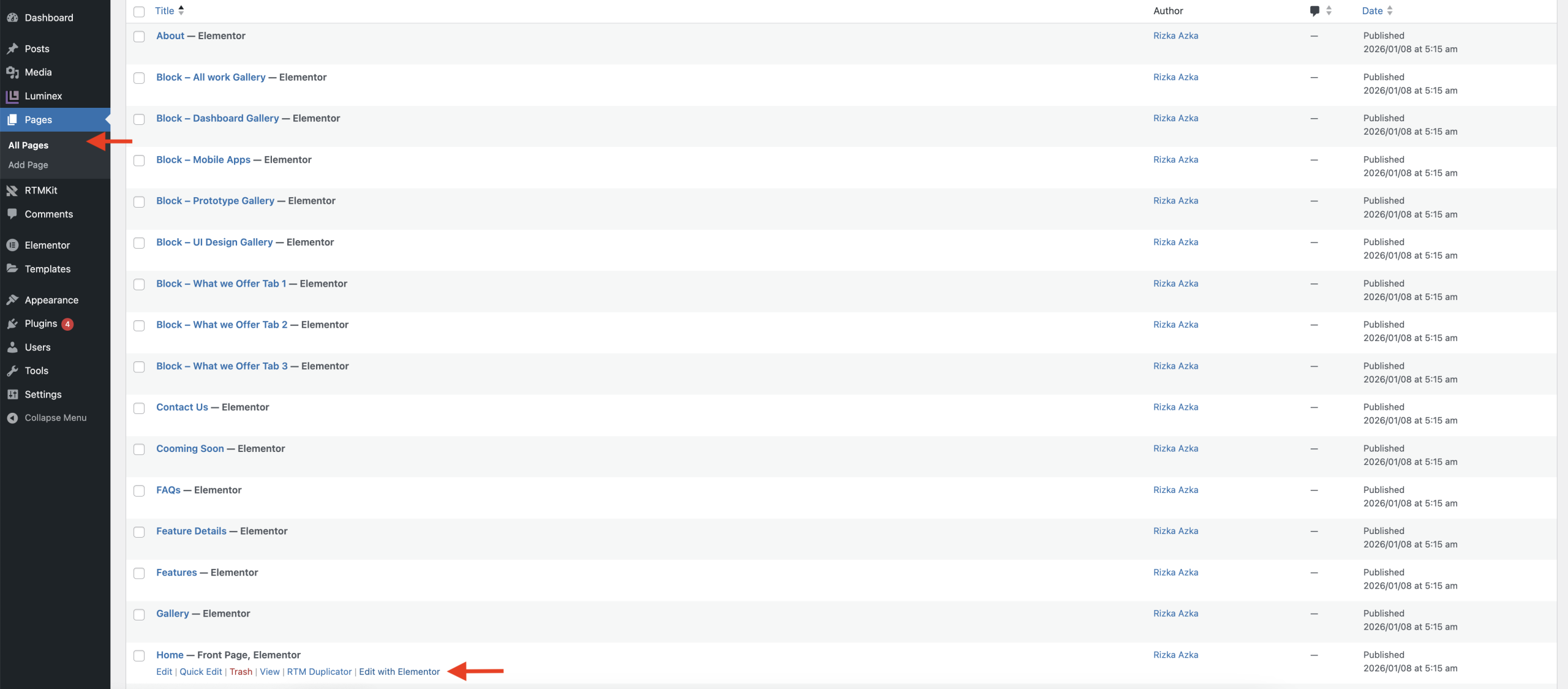
- All pages have been successfully imported and will appear in the Pages menu.
- Click Edit with Elementor to customize the page according to your preferences.