
Theme Installation
Welcome to Rometheme Theme, a powerful and flexible Elementor-based WordPress theme. This guide will walk you through downloading, installing, and setting up the theme to get your website up and running smoothly.
Download The Theme from Envato Elements
If you are already subscribed to Envato Elements, you can download WordPress themes from Rometheme.
Follow steps below to download:
- Click the Download button on the theme you want to use
- All files & documentation: Includes additional resources like documentation, demo content, and the child theme.

1. Installing the theme via WordPress Panel
To install the theme, you must have a WordPress copy installed on your server. Check with the WordPress information article.
Step 1 : Access the Theme Installation Panel
- Login to your WordPress admin panel.
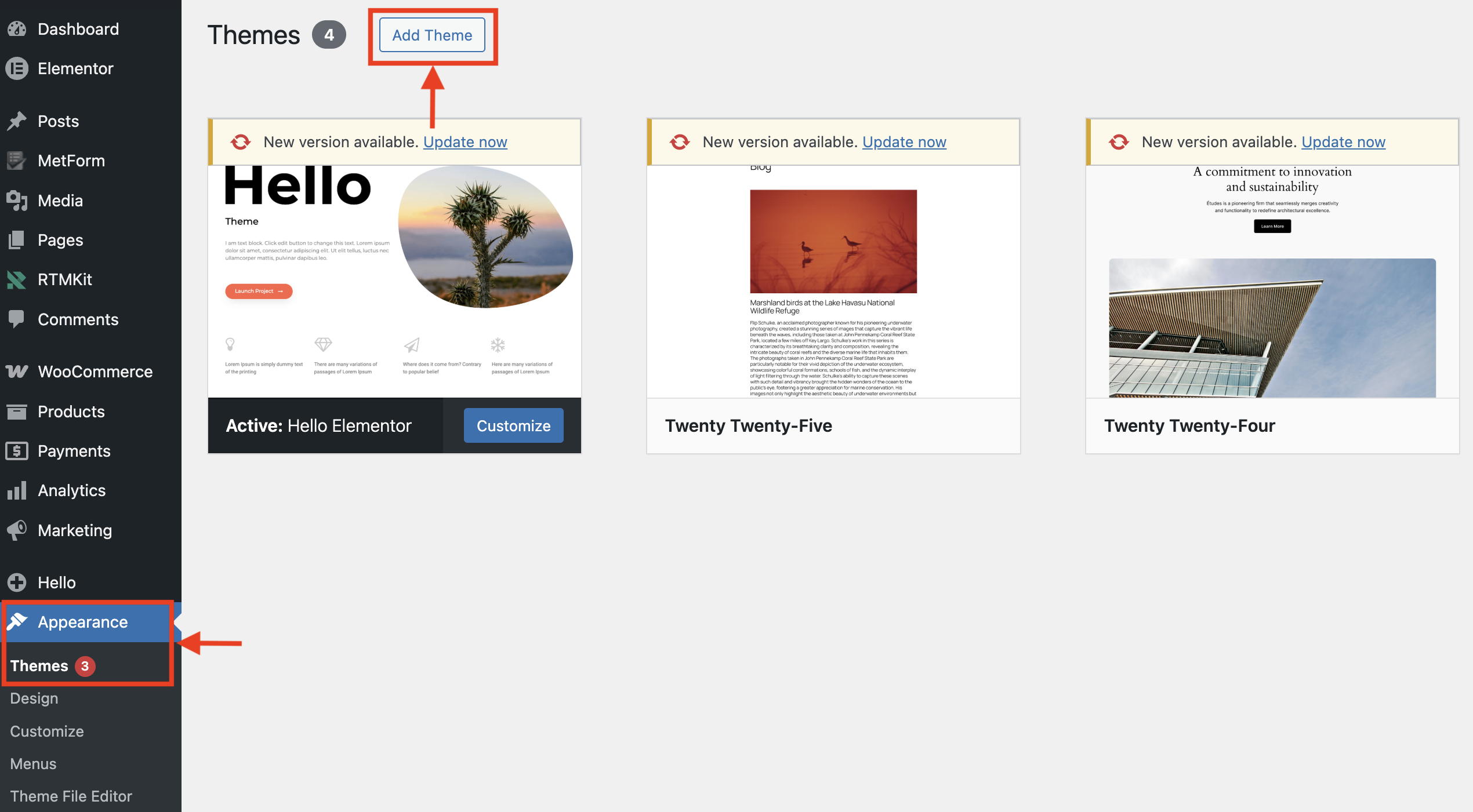
- Navigate to Appearance > Themes from the sidebar.
Step 2 : Upload the Theme:
- Located at the top of the screen, click on the Add Theme button. Then, click on Upload Theme
Step 3 : Install the Theme
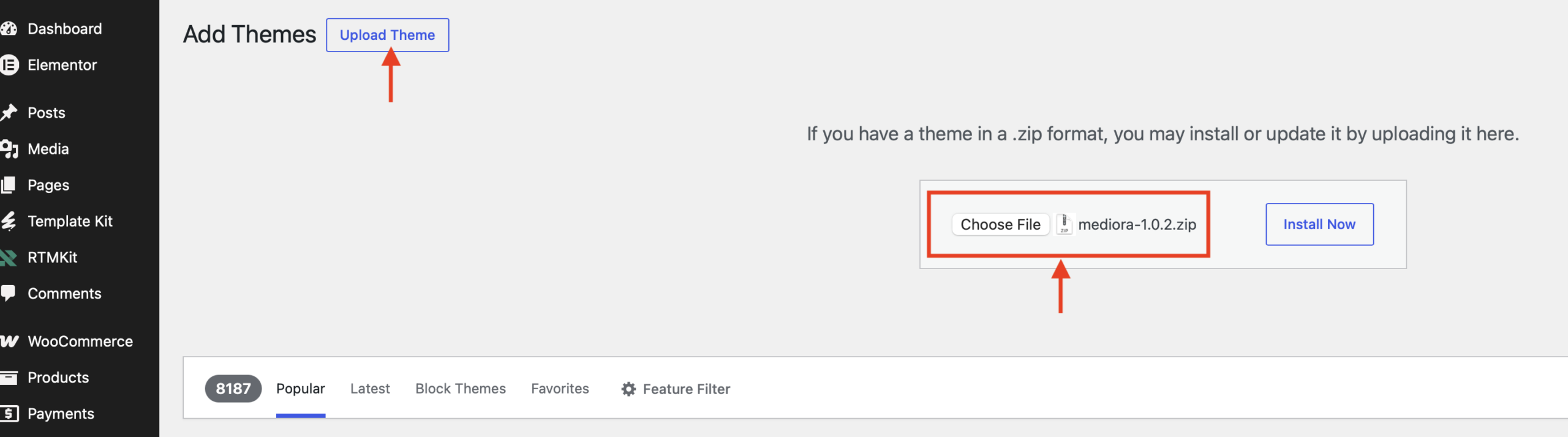
- Upload the theme-name.zip file from your computer.
- Click on Install Now to begin the installation.
Step 4 :Activate the Theme
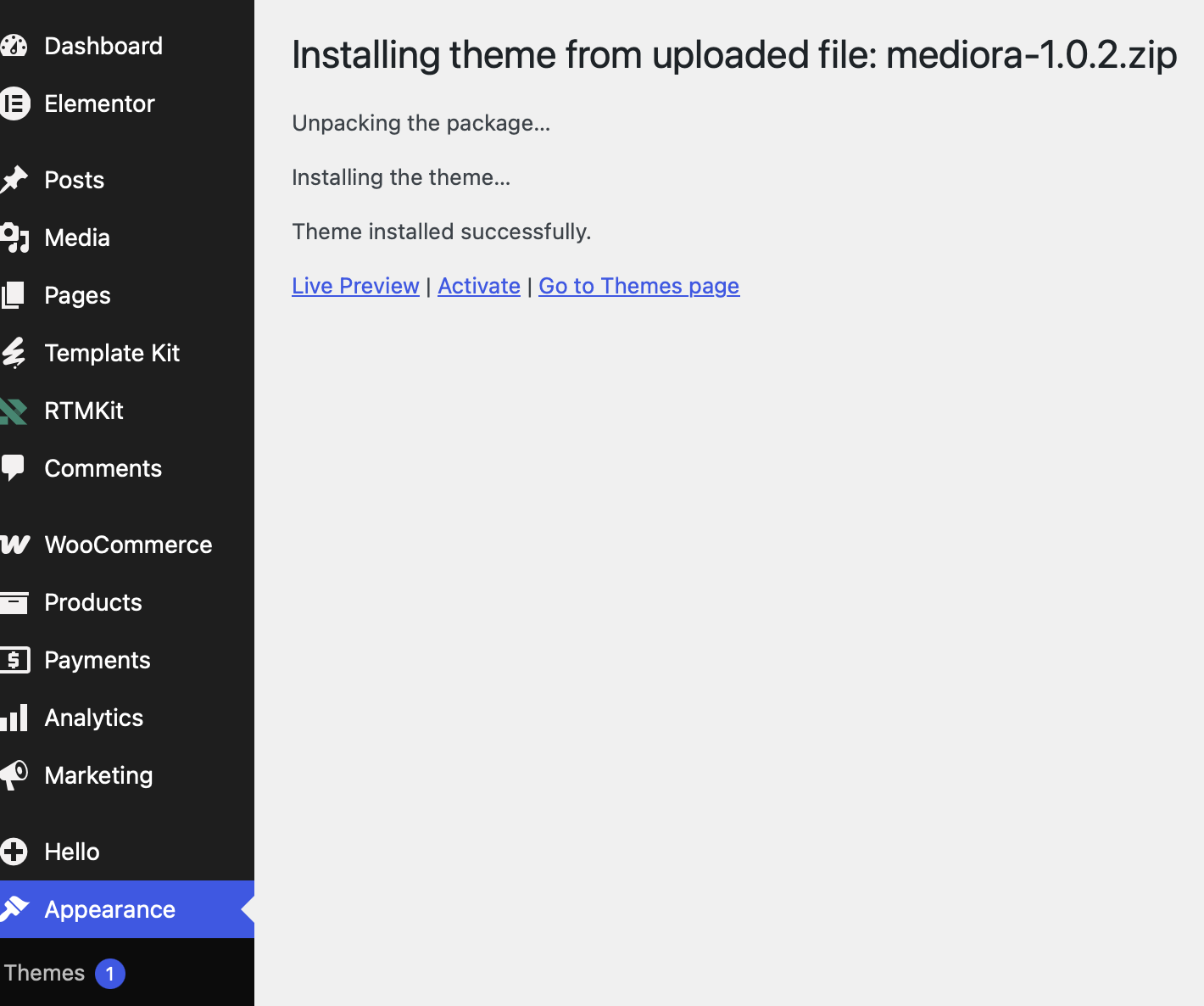
- When the installation is complete, click the Activate button to enable the theme as your active theme.
Step 5 :Install Required Plugins
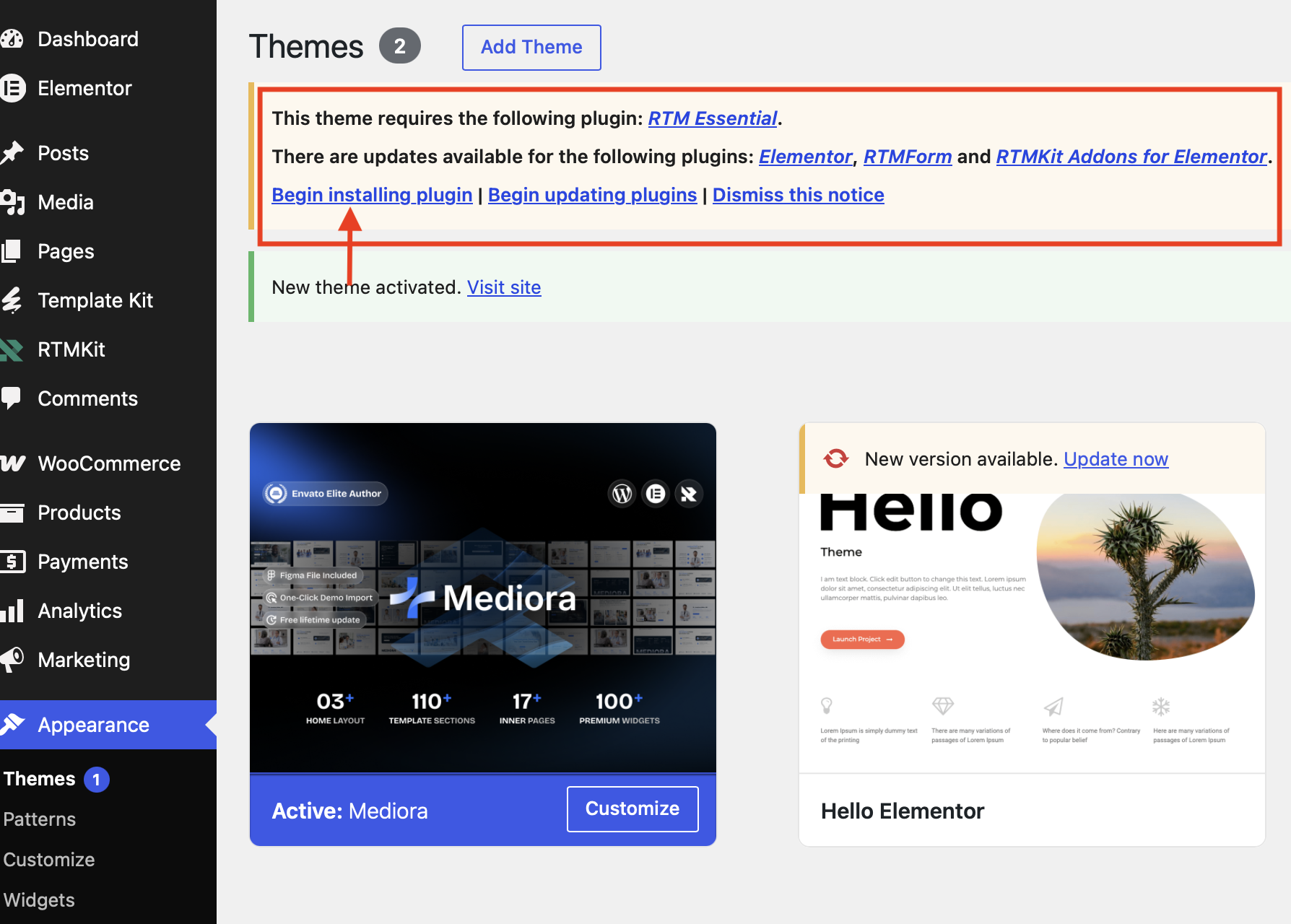
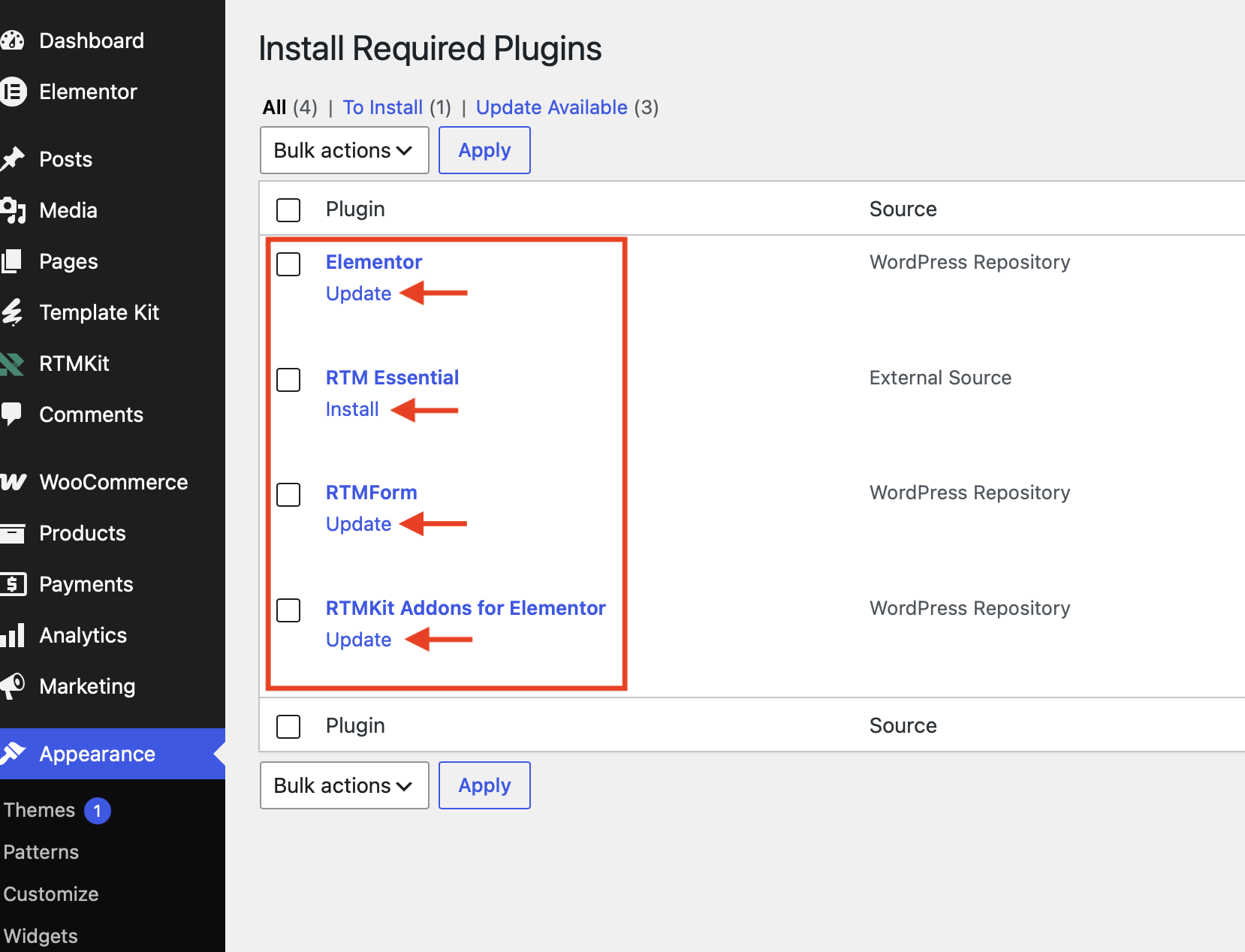
- Make sure the required plugins (RTM Essential, RTMForm, RTMKit, and Elementor) are installed,
- Click Begin Installing Plugin button.
- Install all required plugins by clicking the Install button, and ensure nothing is left out.
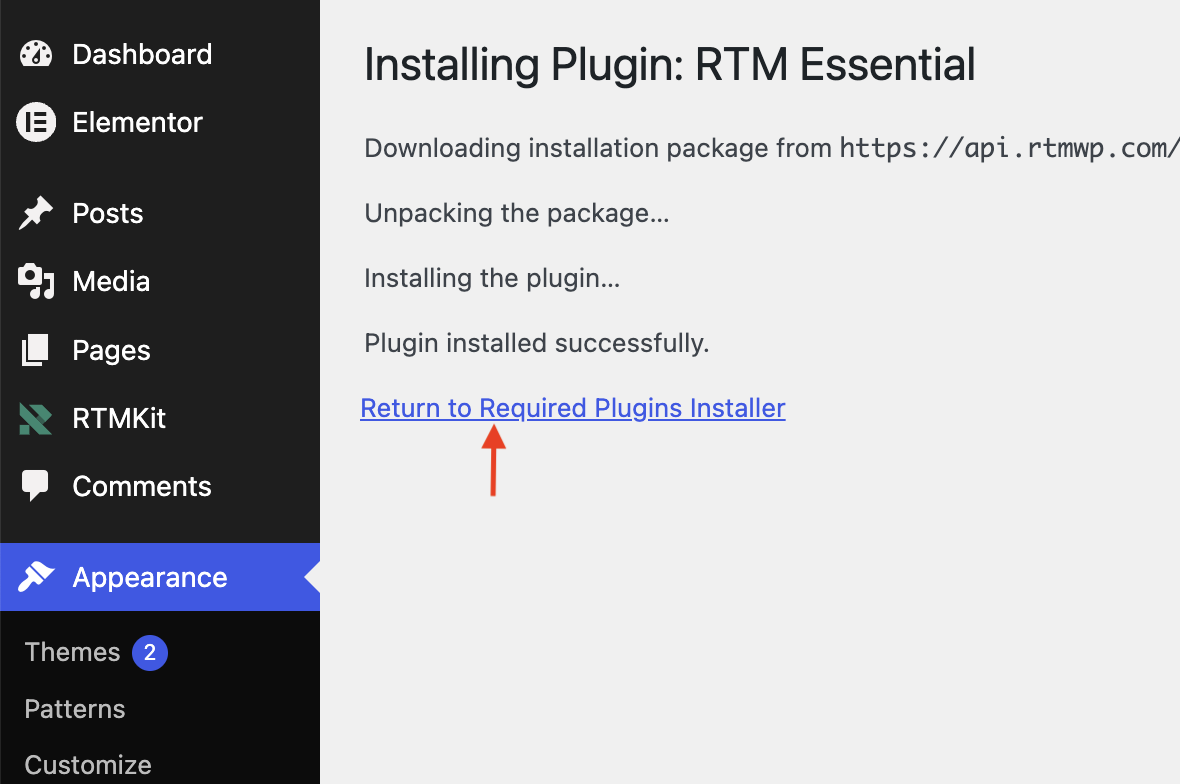
- Click Return to Required Plugins Installer to continue installing the other required plugins.
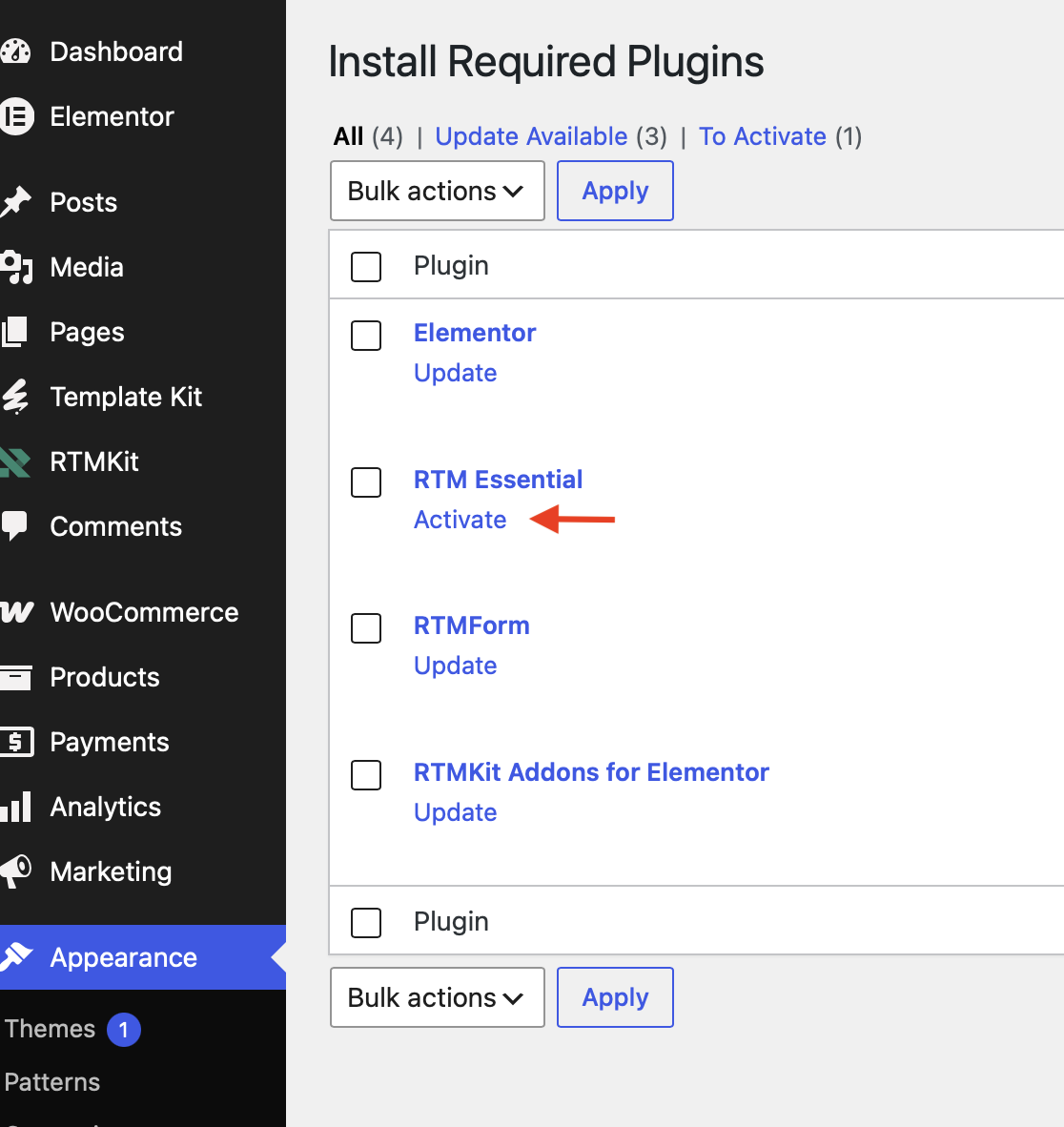
Step 6 : Activate Plugins
- Activate RTM Essential first, then proceed by activating All Required Plugins.
Step 7 : The Dashboard will now appear
- After the required plugins have been successfully installed and activated
- The Dashboard page will appear. The next step is Theme Activation which you can continue from there.

2. Installing the theme via FTP:
- Log into your hosting account via your FTP software client (FileZilla, WinSCP, Transmit or your preferred FTP client).
- Unzip the theme-name.zip file. Use only the extracted theme folder. Upload the extracted theme folder into wp-content -> themes folder and wait for the upload.
- Activate the newly installed theme by navigating to Appearance > Themes and clicking the Activate button.
- Once you activate the theme, you will see a notification message to install the required plugins.
Errors and troubleshooting:
If you are encountering a WordPress error message or white screen, don’t panic. Someone has likely encountered the same message, which can easily be solved. Please see Cannot upload the theme article.
